Install RealtorTasksAI with your AI assistant.
RealtorTasksAI installs into desktop AI apps with MCP support, including ChatGPT desktop's Codex workspace, standalone Codex, Cursor, Windsurf, and Claude Desktop. You can copy and paste the setup prompt directly into ChatGPT desktop.
Continue setup on your computer
You can sign in and prepare your RealtorTasksAI account from this phone or tablet, but the actual install needs a Mac, Windows, or Linux desktop AI app.
Open this page on your computer, then copy the setup prompt into ChatGPT desktop's Codex workspace, Codex, Cursor, or Windsurf, or run the Terminal command for Claude Desktop.
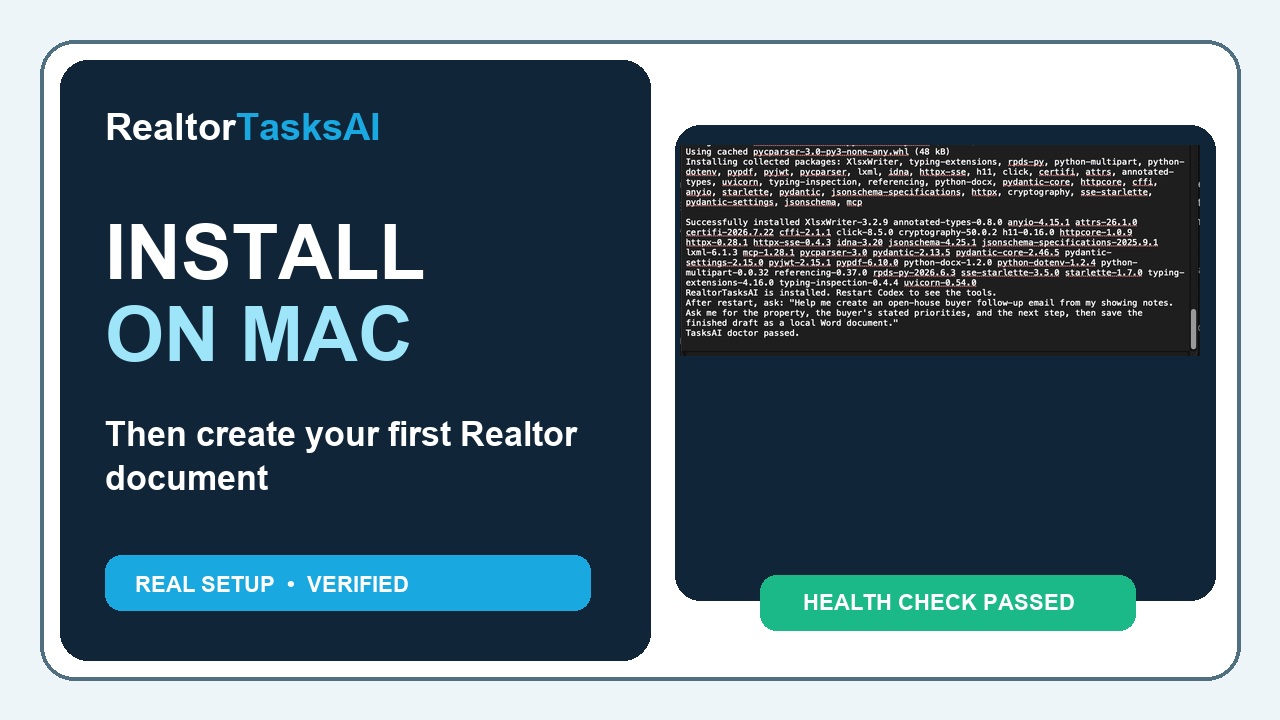 Mac installation walkthrough
Prefer to watch? Follow the complete installation.
See the verified Mac and Codex setup from account creation through the health check and first Realtor task.
Watch the installation video Opens YouTube in a new tabRecommended setup
On your computer, copy this prompt into ChatGPT desktop's Codex workspace, Codex, Cursor, or Windsurf. Your desktop AI app will open the official setup instructions, connect your RealtorTasksAI account, and check that everything worked.
- Open ChatGPT desktop and choose Codex, or open Codex, Cursor, or Windsurf.
- Paste the prompt above.
- If your AI app asks for permission to save setup files, approve it. Those files let RealtorTasksAI appear inside your AI app.
- When your browser opens, approve the connection using the email for your RealtorTasksAI account.
- Restart your AI assistant if prompted.
- Ask: Check my RealtorTasksAI credit balance.
- After a task run, your assistant can save the finished result as a local Word document or Markdown file under
~/Documents/TasksAI/RealtorTasksAI/.
If your assistant is blocked
If setup from a prompt does not work, or if you use Claude Desktop, run this command in Terminal:
The command above is for Codex. Change codex to claude-desktop, cursor, or windsurf if that is the app you use.
After Terminal finishes
- Approve the browser connection when it opens.
- Restart your AI app.
- Ask your AI app: Check my RealtorTasksAI credit balance.
Supported AI apps
These are the apps we have tested for RealtorTasksAI setup today.
ChatGPT desktop (Codex)
Use --client codex.
Best method: choose Codex in ChatGPT desktop, paste the setup prompt, then restart the Codex workspace if prompted.
Standalone Codex
Use --client codex.
Best method: paste the setup prompt, then restart Codex.
Claude Desktop
Use --client claude-desktop.
Best method: run the Terminal command, then restart Claude Desktop.
Cursor
Use --client cursor.
Best method: paste the setup prompt, then restart Cursor.
Windsurf
Use --client windsurf.
Best method: paste the setup prompt, then restart Windsurf.
Advanced manual setup
Most users should not need this. Use it only if the setup prompt and Terminal command both fail.
Codex TOML example
Claude Desktop, Cursor, or Windsurf JSON example
.env file created by the installer.
If your AI app does not expand ~, replace it with your full home folder path.